This post primarily concentrates on setting up the listener for a SQL Server Availability Group in AWS in a multi-subnet cluster. Just a warning, the listener does not function in AWS as you would expect on local instances. Don’t assume this article solves listener issues. It does not. I’ll outline what the issues are with the listener in a later post.
I’m assuming you’ve already done the following:
- Installed Sql Server 2012 on a couple of EC2 instances located in different subnets.
- Created a few test databases (and done full backups) on one of said database EC2 instances.
- Created an availability group hosting said databases.
Before I begin, a shout out is deserved to Jeremiah Peschka (blog | twitter), as I’d never have gotten this figured without this post.
Create the listener
In your availability group, create your listener

Enter in the Listener DNS Name, enter in the port (I left the default port of 1433 for this demonstration to keep it simple), and select StaticIP for the Network Mode.

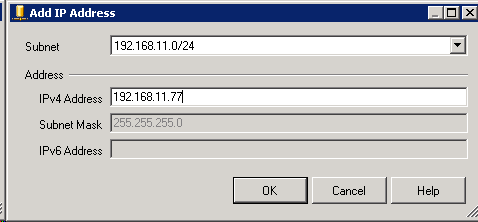
Next, at the bottom of the New Availability Group Listener dialog, click the Add button. This will bring up the Add IP Address dialog. Enter in your static IP addresses. If these IP addresses already exist, you’ll get this error message:
|
The Windows Server Failover Clustering (WSFC) resource control API returned error code 5057. The WSFC service may not be running or may not be accessible in its current state, or the specified arguments are invalid. For information about this error code, see "System Error Codes" in the Windows Development documentation. |
You’ll want to create new IP addresses for your listener that are not being used by the failover cluster itself. The IP addresses will be added to DNS automatically, as will be illustrated further down in the post. For example, currently on my servers I have addresses of 192.168.10.70 & 192.168.10.50 for one node, and 192.168.11.70 & 192.168.11.50 for the second node. For my IP addresses for the listener, I will add IP addresses of 192.168.10.77 & 192.168.11.77.
Obviously, you have to run this as an account that has the proper permissions to add entries to DNS. In my case, I had god rights. You’ll probably want to be a bit more restrictive.
Next, if you look in your DNS, you’ll see it added the listener name with both IP’s.

Next, go to your AWS console. In the console under your EC2 Dashboard under Network & Security, click the Network Interfaces.

Select the network interface that is associated with your AMI and click Manage Private IP Addresses.

Now add the IP address that the listener created to said network interface. Do this for both IP addresses on each of the network interfaces. Only add the .10 to the AMI in the .10 subnet, and add only the .11 to the AMI in the .11 subnet. (It won’t allow you to add an 11 to the 10 subnet, but just trying to be clear.  )
)

Your listener should now be ready for testing. This is where the fun really begins. I’ll split the testing out to another post, as this one is getting pretty big.


 Sql Server Powershell
Leave a reply to Rohit T Cancel reply